
Every cloud image on your desktop belongs to a changing planet, observed by spacecraft from very different vantage points. LiveAtlas Orbital Cockpit brings those connections into one window: rotate Earth, explore satellite orbits, find a region, and apply the latest available imagery to your Mac wallpaper.
This guide introduces the feature and its workflow. The cover is the illustration used in our earlier preview; the interface may differ in your installed version. This article is a feature guide, not an announcement of a new App Store release.
Start with a globe you can explore
Drag Earth to bring familiar coastlines into view. Zoom in to explore a region, or pull back for a full-disk perspective. Seeing Asia, the Pacific, and the Americas on one globe makes it easier to place a regional satellite image in context.
Regional presets provide a quick way to find a view. Within supported coverage, you can also select an area from the globe. Each imagery source has its own field of view, so direct selection is not equally suitable near the edge of Earth or in polar regions. Use an available source or regional preset when a location falls outside a suitable selection area.
The current-location control helps you find yourself on Earth. Exploring or locating a place does not immediately replace your wallpaper: applying an image remains a separate action.
Meet the spacecraft behind the view
Spacecraft models and orbital paths add a spatial perspective to satellite imagery. Select a spacecraft to inspect its calculated position, altitude, speed, and data status, and explore how different observation platforms relate to the planet below.
These positions are calculated from public orbital data. They are not live camera footage of spacecraft. Distances are compressed and models enlarged to keep the scene readable, so the on-screen proportions should not be used as measurements.
Playback offers 1×, 120×, and 600× speeds, along with pause and a return-to-now control. Accelerated playback makes orbital movement easier to follow. Returning to the current time restores a view of the positions calculated for that moment.
From a place of interest to your wallpaper
The cockpit connects exploration with the image you will actually use:
- Rotate Earth or choose a regional preset.
- Check the satellite image preview, its source, and its image time.
- Refine the composition with the available crop controls.
- Apply the latest image when you are ready.
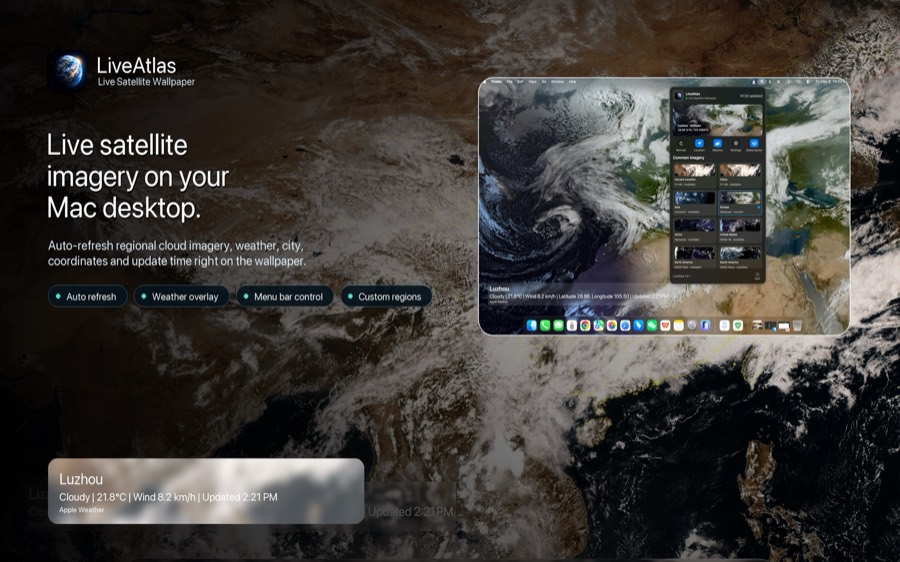
The globe helps you navigate; the preview shows the imagery selected for your desktop. Applying it uses your existing display, layout, and weather settings. Browsing regions or adjusting a candidate selection does not immediately change the desktop.
You can also browse previously saved wallpaper images to revisit earlier views. History browsing is separate from applying the latest imagery: return to the latest image before applying a wallpaper.
Moving orbits and fresh imagery have different clocks
Changing playback to 600× only accelerates the orbital demonstration. It does not create future cloud images or make a satellite provider publish its next observation sooner. To judge freshness, check the image time rather than the animation speed.
The globe's cloud layer is a composite. Its regions may represent observations made at different times, rather than one simultaneous photograph of the entire planet. High-latitude edges of the global texture also include illustrative processing and should not be read as observed polar cloud conditions.
For a particular region, use the relevant satellite preview and its timestamp. If connectivity is interrupted, a retained cached image is still a previous observation, not a new one. Our satellite data sources page provides background on the imagery used by LiveAtlas.
Opening the cockpit and understanding access
In a LiveAtlas version that includes the feature, open the orbital observatory from its menu-bar entry or the app menu. The keyboard shortcut is Shift + Command + O.
Access requires an active trial or an unlocked paid entitlement. If the trial has expired and there is no valid paid entitlement, choosing the entry opens the subscription dialog instead of the cockpit. Check the app for your current entitlement and purchase options.
If your installed version does not yet show the entry, check the release notes and available App Store updates. This guide does not promise an App Store release date or a particular version's availability.
Let your next wallpaper begin with a little exploration
Start with a familiar coastline and follow the clouds across the water. Then pull back and explore the spacecraft observing Earth. When you find a view you want to keep, bring its latest available image to your desktop.
Orbital Cockpit makes choosing an Earth wallpaper an opportunity to learn a little more about the planet behind it.
View LiveAtlas on the Mac App Store, or read our real-time Earth wallpaper guide for background on image updates and desktop use.