
A live satellite wallpaper can make a Mac desktop feel connected to the real world, but the experience depends heavily on one quiet choice: which region you watch.
Choose too wide a view, and the image may feel beautiful but distant. Choose too small a view, and the satellite data may not have enough resolution to look clean as a desktop wallpaper. The best result usually sits between those two extremes: large enough to preserve cloud texture, but specific enough to make the weather feel relevant to your day.
This guide explains how to choose a satellite cloud map region for a Mac weather wallpaper, whether you want to follow your own city, a coastline, a storm track, or a wider view of Earth.
Start With The Weather System, Not Only Your Location
It is natural to begin with the place where you live. If you are in Japan, you may look for Japan. If you are in California, you may look for the western United States. If you are in Europe, you may look for Europe.
That is a useful starting point, but weather does not respect city boundaries. Clouds often move across oceans, mountains, and entire continents before they reach you. A good satellite wallpaper should show enough surrounding area to make those patterns understandable.
For everyday use, try choosing a region that includes your location plus the surrounding weather system. If you live near the coast, include part of the ocean. If you live near a mountain range, include both sides of it. If your weather is influenced by monsoon flow, typhoon paths, or Atlantic storm tracks, choose a view that includes the upstream area where those systems develop.
The goal is not just to see where you are. The goal is to see what is moving toward you.
Wide Views Are Better For Context
A wide satellite view is useful when you care about atmosphere as a system. It can show long cloud bands, storm rotation, day-night transitions, and the relationship between land, ocean, and weather.
Wide views are especially good for:
watching typhoon or hurricane development over open water
understanding how large cloud systems move across a continent
seeing seasonal patterns such as monsoon clouds or winter storms
using the wallpaper as a calm visual background rather than a detailed local map
On a Mac desktop, wide views also tend to look more stable and polished. The satellite image has enough source detail to survive being stretched across a large display, and the cloud shapes often feel more natural at wallpaper scale.
If you want LiveAtlas to feel like a quiet window into Earth, start with a wider regional view.
Smaller Views Are Better For Local Awareness
A smaller view can make the wallpaper feel more personal. You may be able to recognize your region, nearby coastlines, familiar islands, or the cloud cover around your city.
This is useful when you want the desktop to answer simple questions at a glance:
Is my region clear or cloudy?
Is a storm system nearby?
Are clouds building over the mountains or drifting in from the sea?
Has the sky changed since this morning?
The tradeoff is image quality. Satellite cloud maps are not infinite-resolution photographs. If you crop too tightly, the wallpaper may become soft or rough, especially on large Retina displays. A satellite source that looks fine on a weather website may not look clean when enlarged across an entire desktop.
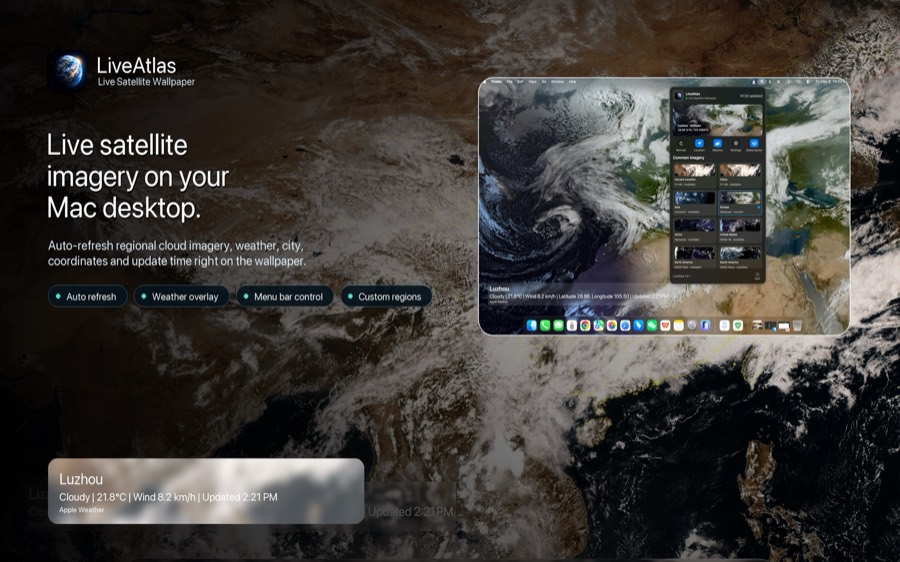
For this reason, a custom area should usually be slightly larger than the exact place you care about.
Why Custom Regions Should Not Be Too Small
Custom regions are powerful because they let you choose an area that matches your real life. You can focus on a country, a coastal zone, a flight route, an ocean basin, or a region that is not covered well by preset options.
But a custom satellite wallpaper is different from a map app. You are not selecting a street-level area. You are selecting a cloud field captured from space.
If the selected area is too small, two things can happen.
First, the image may not contain enough source detail. The wallpaper can become pixelated, blurry, or visually noisy.
Second, the weather may lose context. A single city-sized crop may show clouds above you, but not the larger system that is creating them.
A practical rule is simple: choose a region slightly larger than you think you need. Include nearby ocean, neighboring provinces, surrounding terrain, or the broader path where weather usually arrives from. This usually creates a better balance between local relevance and visual quality.
Match The Region To The Satellite Source
Different satellite sources are designed to watch different parts of Earth. Himawari is useful for East Asia and the western Pacific. GOES is useful for the Americas and surrounding oceans. Meteosat is important for Europe, Africa, and adjacent regions. GK-2A provides another valuable view over East Asia and the Asia-Pacific region.
When choosing a region, it helps to think about the satellite first.
Pick a source that naturally covers your area from a good viewing angle. Then choose a region inside that source's strongest coverage. A region near the edge of a satellite disk may appear more distorted, while a region closer to the center often looks cleaner.
This is one reason LiveAtlas separates satellite sources and supported regions instead of treating the whole planet as one identical image. The best cloud-map wallpaper comes from matching your location to the right source.
Use The Wallpaper Differently From A Forecast
A satellite cloud map is not a replacement for official forecasts or weather warnings. Forecast apps, meteorological agencies, and emergency alerts are still the right tools for decisions involving safety.
The value of a satellite wallpaper is different. It gives you ambient context. You can see whether clouds are expanding or clearing. You can notice a spiral storm over the ocean. You can understand why a forecast says rain is likely, because the larger weather pattern is visible behind the number.
That context can make weather feel less abstract. Instead of only seeing an icon that says cloudy, you see the cloud system itself.
Where LiveAtlas Fits
LiveAtlas is built for this kind of everyday Earth awareness on macOS. It turns public satellite cloud imagery into a desktop wallpaper, lets you choose from regional satellite views, and supports custom areas when the preset regions do not match your location well enough.
The app is intentionally quiet. It does not try to turn your Mac into a professional forecasting console. The idea is to keep weather visible in the background: real cloud imagery, changing over time, without adding another dashboard you have to manage.
If the preset region is close but not quite right, use a custom region. Choose the satellite source that best covers your part of Earth, then draw a slightly wider area around where you live. In many cases, that produces a wallpaper that feels both personal and clean.
A Better Desktop Starts With The Right Scale
The best satellite wallpaper is not always the closest crop. It is the view that gives your eyes enough information and your display enough image quality.
Start wide. Watch how the clouds move. Then narrow the region only as much as the image quality allows.
When the scale is right, a Mac wallpaper stops feeling like decoration. It becomes a calm view of the atmosphere around you: local enough to matter, wide enough to explain what is happening, and quiet enough to live with every day.