A great desk setup is not finished when the monitor arm is tightened and the cables disappear. The software layer matters just as much.
For geeks, digital enthusiasts, software lovers, and people who enjoy refining a Mac workspace, the best desktop apps are rarely the biggest applications. They are the small utilities that improve every hour spent at the computer: a faster launcher, cleaner window layouts, a calmer menu bar, better system visibility, smarter input shortcuts, and a desktop that feels personal.
People searching for the best Mac apps for power users, must-have macOS utilities, Mac desk setup software, or Mac productivity apps for geeks are often asking the same question: which tools make the whole computer feel better without creating more clutter?
This 2026 guide collects eight Mac desktop apps that can make a desk setup more useful, more expressive, and more enjoyable. It is not a list of software everyone must install. The goal is to build a compact tool stack around the way you actually use your Mac.
What makes a good Mac desk setup app?
The best Mac desktop apps for geeks usually do at least one of four things.
They remove repeated friction. A shortcut that saves three clicks may not sound important, but it becomes meaningful when used dozens of times each day.
They expose useful information. Hardware activity, network traffic, current weather, and system state can all be valuable when presented without clutter.
They improve the visual environment. A thoughtful wallpaper, a clean menu bar, and predictable window layouts make the entire desk feel more intentional.
They are customizable without becoming a second job. Power users enjoy control, but a good utility should still be understandable after the initial setup.
With those ideas in mind, here is a practical software stack for a modern Mac desk setup.
1. LiveAtlas — live Earth wallpaper for Mac
Most desk setup guides focus on productivity and forget the surface visible behind every window: the desktop itself.
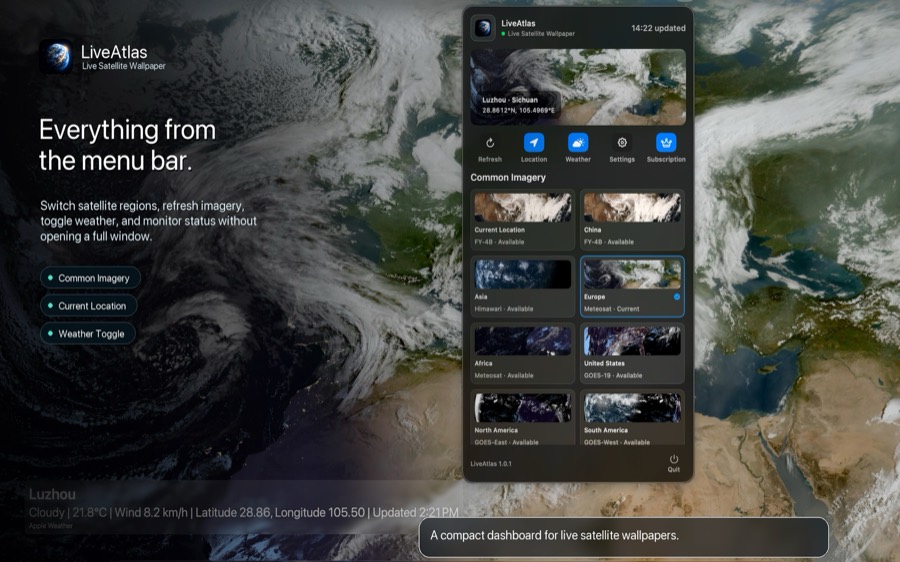
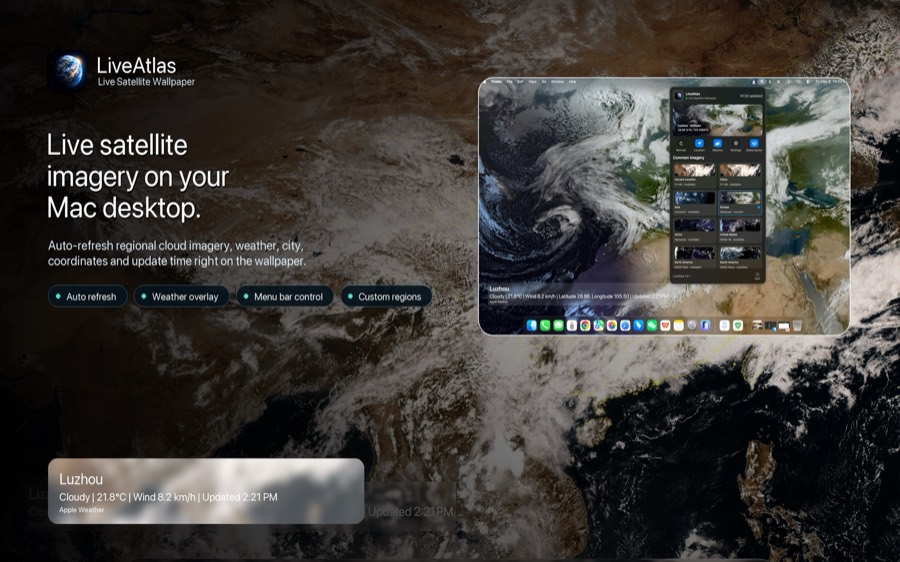
LiveAtlas turns recent weather satellite imagery into an automatically updating macOS wallpaper. Instead of a looping animation or a static image, the desktop can reflect real cloud patterns, daylight, and regional weather systems. Optional location-based weather context and regional satellite views make it useful for weather watchers as well as people who simply want a distinctive visual setup.
This is why LiveAtlas fits naturally into an aesthetic Mac desktop. It adds motion through real-world change rather than constant video playback. When windows are open, it stays in the background. When the desktop is visible, it gives the setup a quiet connection to the planet.
Best for: weather enthusiasts, space fans, minimalist desk setups, ultrawide displays, and anyone searching for a live Earth wallpaper for Mac.
Official site:
https://www.liveatlas.top/
2. Raycast — a launcher for Mac power users
Raycast is one of the most useful Mac apps for power users because it can become the front door to the rest of the system.
It combines app launching with file search, snippets, quick links, calculations, system commands, window tools, and an extension ecosystem. Developers can also build extensions with its API, which gives software enthusiasts room to shape the launcher around their own workflow.
The value is not simply opening apps faster. Raycast reduces the number of separate interfaces you need to remember. If the same keyboard shortcut can search files, run a script, paste a snippet, or call an extension, the Mac starts to feel more coherent.
Best for: keyboard-heavy workflows, developers, writers, designers, and people who enjoy building a personal command system.
Official site:
https://www.raycast.com/
3. Rectangle — a Mac window manager
A large monitor does not improve productivity by itself. The useful part is being able to place windows quickly and repeatably.
Rectangle moves and resizes macOS windows with keyboard shortcuts or snap areas. The free version is open source and covers the essential layouts most people need: halves, thirds, corners, centered windows, and movement between displays. Rectangle Pro adds more advanced positioning and workspace options for users who want deeper control.
For a desk setup with an ultrawide monitor, a vertical side display, or frequent docking, predictable window placement is more valuable than constantly dragging borders by hand.
Best for: multi-monitor desks, ultrawide users, developers comparing code and documentation, and anyone who wants Windows-style snapping on macOS.
Official site:
https://rectangleapp.com/
4. Ice — a menu bar manager for Mac
The menu bar often becomes the least organized part of a carefully designed Mac desktop. Every utility wants a permanent icon, and eventually the status area becomes a row of visual noise.
Ice is a menu bar management tool for hiding and revealing items, arranging them through a drag-and-drop interface, searching menu bar items, adjusting spacing, and customizing the appearance of the bar.
For desk setup fans, this is not only cosmetic. A cleaner menu bar makes the important status items easier to find, especially on MacBooks where camera hardware and limited width reduce the available space.
Best for: people who run many background utilities, MacBook users, and anyone building a clean macOS desktop setup.
Official site:
https://icemenubar.app/
5. iStat Menus — a Mac system monitor app
Geeks like knowing what the computer is doing.
iStat Menus places detailed system information in the macOS menu bar, including processor activity, memory, disks, network traffic, temperatures, sensors, and other hardware data supported by the Mac. It turns the menu bar into a compact observability layer without requiring Activity Monitor to stay open.
This is especially useful when testing a demanding application, diagnosing a slow network transfer, watching temperatures during sustained work, or simply learning how a Mac behaves under different loads.
Best for: hardware enthusiasts, developers, reviewers, performance-conscious users, and anyone who enjoys a data-rich desktop.
Official site:
https://bjango.com/mac/istatmenus/
6. BetterTouchTool — a Mac automation app for custom input
BetterTouchTool is for the person who looks at a trackpad gesture, mouse button, keyboard shortcut, or window action and thinks: this should do exactly what I want.
The app can connect custom triggers to actions across trackpads, mice, keyboards, the Touch Bar on supported Macs, and other input methods. It is useful for simple shortcuts, but its real appeal is composability: one gesture can open an app, move a window, run a command, or trigger a workflow built around a specific task.
The best way to start is small. Create one shortcut for an annoyance you encounter every day, use it for a week, and only then add another. A programmable setup is most satisfying when the custom behavior becomes muscle memory.
Best for: automation fans, trackpad power users, shortcut collectors, and people who enjoy tailoring hardware to software.
Official site:
https://folivora.ai/
7. CleanShot X — a screenshot and screen recorder app for Mac
Screenshots are part of everyday communication for developers, designers, product managers, reviewers, and software enthusiasts. The built-in macOS tools are capable, but a dedicated capture workflow can remove several steps.
CleanShot X combines screenshots, scrolling capture, screen recording, annotation, and sharing-oriented tools in one focused application. It is particularly useful when a screenshot needs to explain something rather than merely prove that it happened.
For a digital creator or app enthusiast, good capture software is part of the desk setup: it turns what is on the screen into documentation, feedback, tutorials, bug reports, and publishable visuals.
Best for: app reviewers, creators, designers, developers, support work, and anyone who shares the screen frequently.
Official site:
https://cleanshot.com/
8. OrbStack — a Docker Desktop alternative for Mac
For software enthusiasts who work with containers or Linux environments, the invisible infrastructure matters as much as the visible desktop.
OrbStack provides Docker-compatible containers and Linux machines on macOS with an emphasis on speed, low friction, and a native Mac experience. Developers searching for a Docker Desktop alternative for Mac often consider it because it is designed to make local services, development containers, and Linux environments easier to run without turning infrastructure management into the main task.
Not every desk setup needs a container runtime. But for developers, self-hosting enthusiasts, and people who enjoy experimenting with software stacks, it can be one of the most practical utilities on the machine.
Best for: developers, DevOps workflows, local web projects, homelab users, and curious software tinkerers.
Official site:
https://orbstack.dev/
How to build the stack without creating software clutter
Installing every recommendation at once is the fastest way to turn a clean setup into another maintenance project.
Start with the layer that currently creates the most friction.
If the desktop feels generic, begin with LiveAtlas. If app switching is slow, try Raycast. If windows never stay organized, use Rectangle. If the menu bar is crowded, install Ice. If you want to understand system behavior, add iStat Menus. If repeated gestures and clicks bother you, explore BetterTouchTool. If you constantly explain things with screenshots, use CleanShot X. If local containers are part of your work, consider OrbStack.
Give each utility time to earn its place. The best Mac software setup is not the one with the longest app list. It is the one where every background app has a clear reason to launch at login.
A balanced geek desktop
A thoughtful Mac desk setup has three layers.
The visual layer makes the workspace feel personal. LiveAtlas and a clean menu bar shape what the desktop looks like when work is quiet.
The interaction layer reduces friction. Raycast, Rectangle, and BetterTouchTool help the computer respond to your habits.
The information layer makes the machine easier to understand. iStat Menus, CleanShot X, and developer tools such as OrbStack help you observe, explain, and build.
Hardware creates the outline of a desk setup. Software determines how it feels to use every day. The best utilities for Mac in 2026 are the ones that keep earning their place after the excitement of installation is gone.
Download LiveAtlas
If you want to add a real satellite Earth view to your Mac desktop, LiveAtlas is available on the Mac App Store.
Mac App Store:
https://apps.apple.com/us/app/liveatlas-live-earth/id6762602057